
Javascript

Automatically Resizing an Embedded Iframe to Fit Its Content

Automatically Resizing an Embedded Iframe to Fit Its Content

Embedding content using an <iframe> is a common technique for widgets, dashboards, payment forms, and third-party integrations. However, one long-standing problem remains: An iframe does not automatically resize itself to match the size of its content. 


I have been asked recently to embed an Iframe to a website page, the iframe was for a multi-step form created with a third party tool. However we faced a common issue related to iframe embeding which is how to properly resize it to fit it’s contents.

From the solutions i tried using CSS and media queries to resize the iframe, but this was not the optimal solution as this leads to scrollbars and clipped contents. This article explains a better solution using javascript postMessage() function used in production systems like YouTube embeds.

Note: this technique only works when you control (or can modify) the page loaded inside the iframe.

The iframe must run the measurement and send its size to the parent using postMessage. If you are embedding a third-party site you cannot modify, automatic resizing is not possible.


Cross-window messaging

The browser provides a safe API for communication between windows and iframes:

window.postMessage.

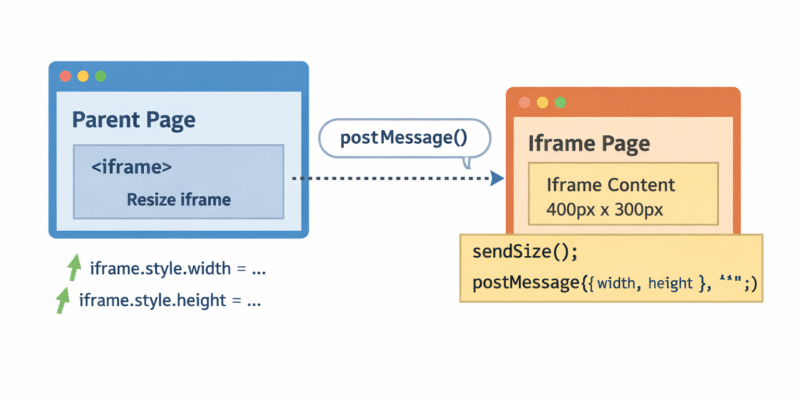
The iframe measures its own content and sends the dimensions to the parent. The parent then applies those values to the <iframe> element.

Step 1 — Wrap the iframe content

Inside the iframe page, wrap all content in a single container:

<body>
  <div id="root">
    <!-- All iframe content goes here -->
    <h1>Embedded widget</h1>
    <p>This content can be any size.</p>
  </div>
</body>

Add this CSS to prevent scrollbars:

html, body {
  margin: 0;
  padding: 0;
  overflow: hidden;
}

#root {
  display: inline-block; 
}

The inline-block ensures the wrapper shrinks to fit its contents instead of stretching to the viewport.

Step 2 — Measure and send size from the iframe

<script>
const root = () => document.getElementById("root");

function sendSize() {
  const el = root();
  if (!el) return;

  const rect = el.getBoundingClientRect();

  parent.postMessage(
    {
      iframeWidth: Math.ceil(rect.width),
      iframeHeight: Math.ceil(rect.height)
    },
    "*"
  );
}

window.addEventListener("load", () => {
  sendSize();

  const ro = new ResizeObserver(sendSize);
  ro.observe(root());
});
</script>

This code uses the postMessage() which sends and event to the parent document and javascript ResizeObserver Api to monitor any change to size.

  • Measures the true rendered size of the content

  • Sends it to the parent

  • Automatically updates when the content changes (images load, text changes, layout shifts)

Step 3 — Listen and adjust iframe size in parent page

<iframe id="widgetFrame" src="child.html" style="border:0;"></iframe>

<script>
const iframe = document.getElementById("widgetFrame");

window.addEventListener("message", e => {
  if (!e.data) return;

  if (e.data.iframeWidth)
    iframe.style.width = e.data.iframeWidth + "px";

  if (e.data.iframeHeight)
    iframe.style.height = e.data.iframeHeight + "px";
});
</script>

This way the iframe will now perfectly match its content size.


As a Security note:

In production, never use "*" as the target origin. Always specify your real domain and verify it in the parent:

if (e.origin !== "https://your-iframe-site.com") return;

This prevents other sites from spoofing resize messages.


0 0 votes
Article Rating

What's your reaction?

Excited
0
Happy
0
Not Sure
0
Confused
0

You may also like

Subscribe
Notify of
guest

0 Comments
Oldest
Newest Most Voted
Inline Feedbacks
View all comments